SnapScan

SnapScan scans paper on a Fujitsu ScanSnap iX500 and saves it as a PDF. Load the feeder, press Scan — in the app or on the scanner itself — and the pages land in a folder you chose, straightened, upright, and sized to the paper they came from.
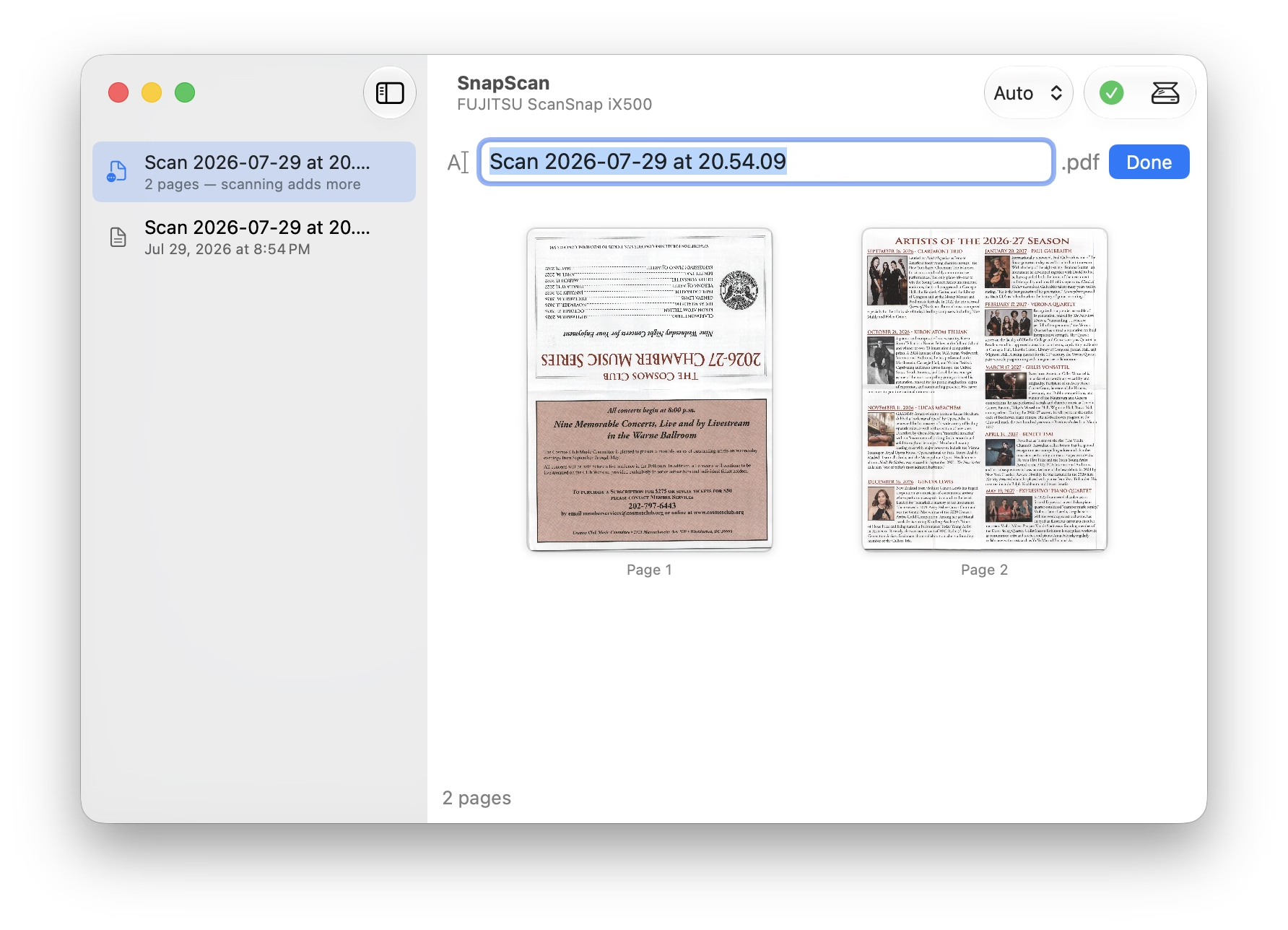
Fujitsu stopped supporting the iX500 years ago, and the software it shipped with was never the reason anyone bought the scanner. SnapScan needs none of it: no ScanSnap Home, no drivers, no helper processes. It speaks to the scanner directly over USB, so the whole thing is one 2 MB app you can drag to the Trash when you're done with it.
Scanning
Pages appear as they arrive. The scanner feeds a sheet, and the image fills in from the top while the paper is still moving — so you can tell immediately whether you loaded the stack upside down.
Set Paper to Auto and the scanner measures each sheet instead of guessing: a letter page comes out letter-sized, a receipt comes out receipt-sized, and anything close to a standard size snaps to it exactly. Scan both sides, or just one, at up to 600 dpi.
Each scan gets a name field with the date already filled in and selected, so typing a real name and pressing return is the whole renaming interaction. Keep scanning to add pages to the same PDF; press Done when the document is finished.
Reading
Click any scan in the sidebar to read it.
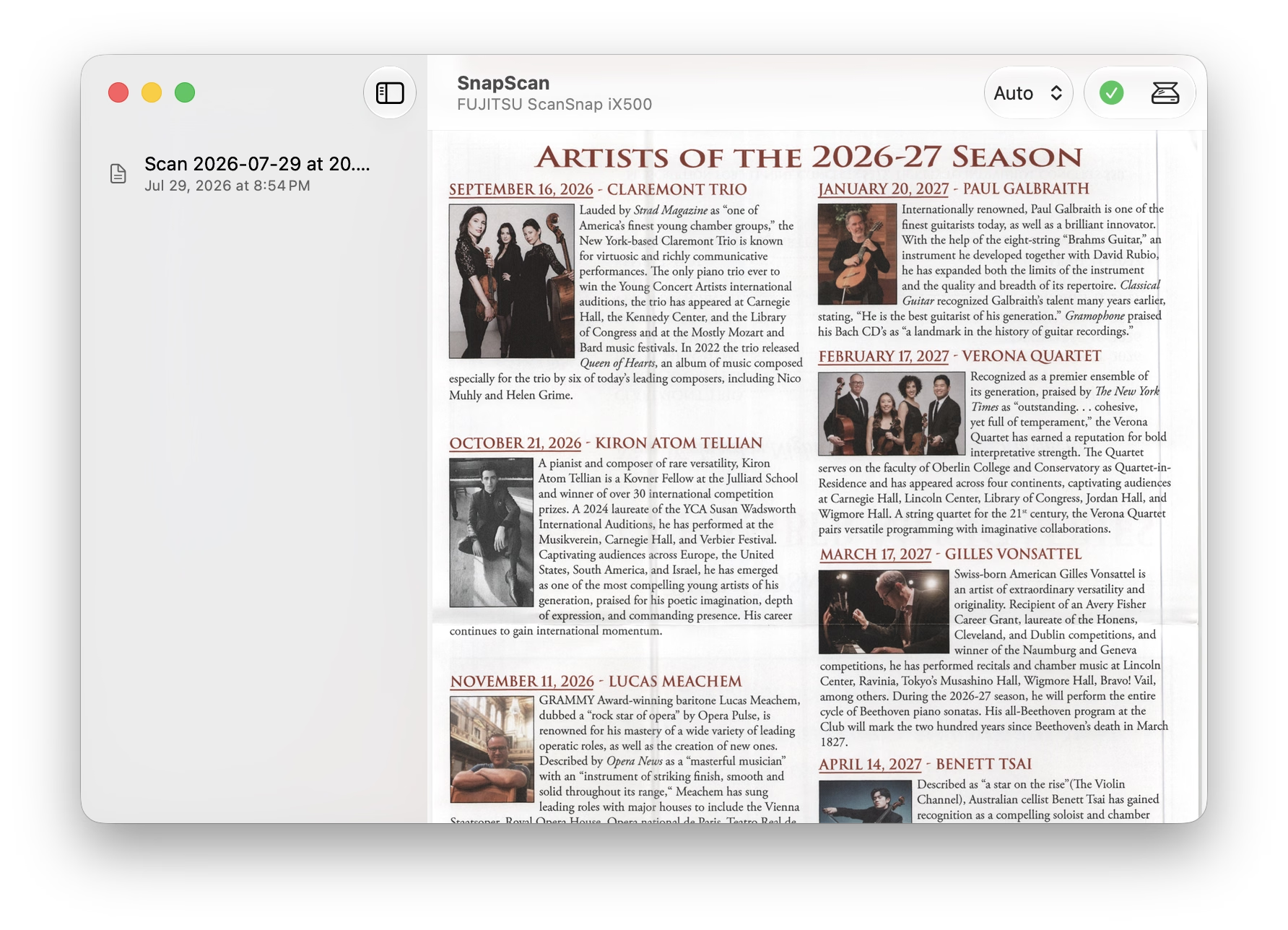
The sidebar lists the scans SnapScan has made, tracked by the files themselves — rename or move one in the Finder and it keeps its place in the list. Drag a scan out to move it somewhere else, hold Option to copy it instead, and right-click to reveal it in the Finder.
Settings
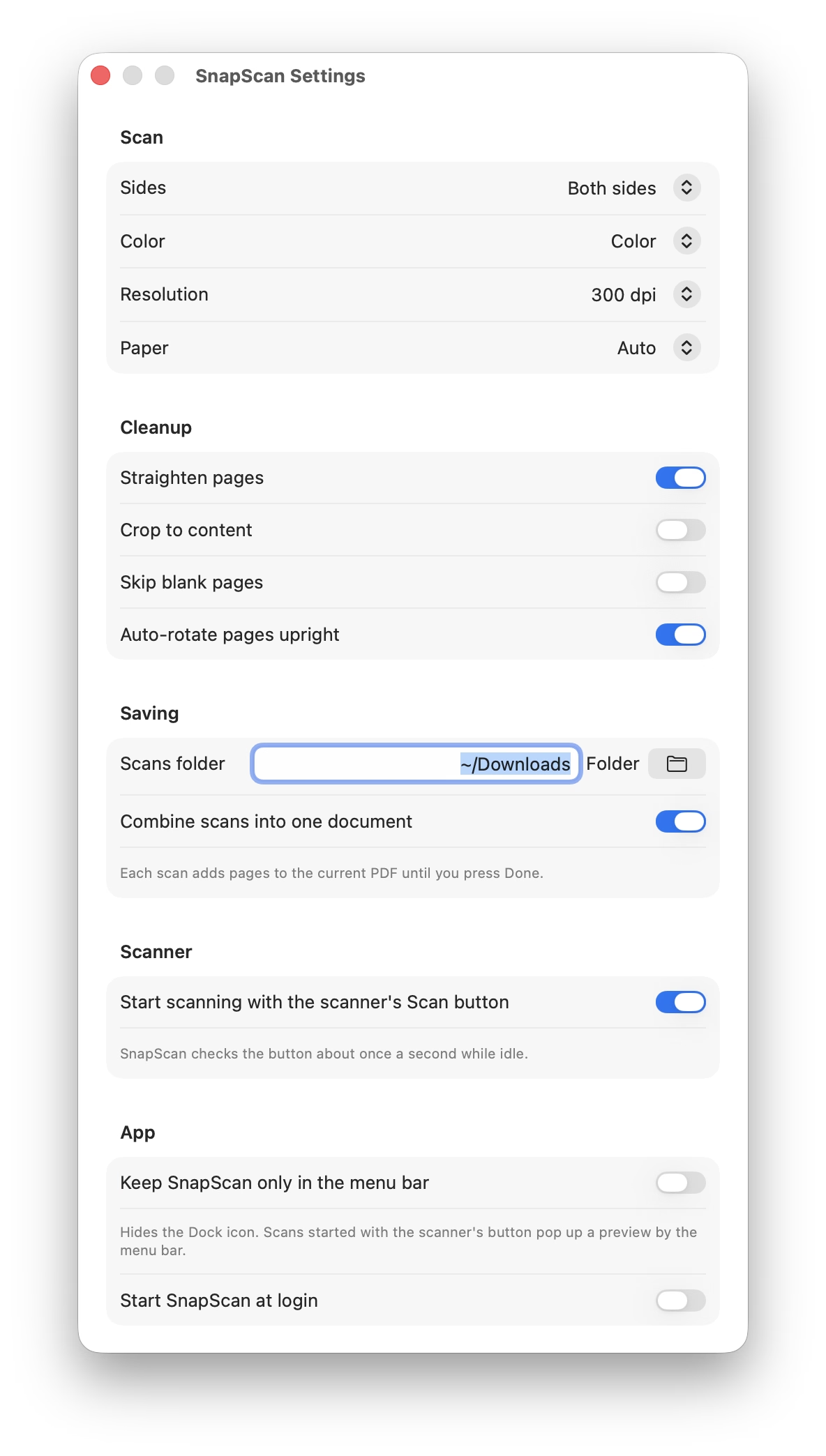
Sides, colour, resolution, and paper size; straightening, cropping, blank-page skipping, and upright rotation; where PDFs are saved and whether successive scans combine into one document. Two more worth knowing about:
The scanner's own Scan button starts a scan without touching the Mac. SnapScan watches for it about once a second while idle.
Menu bar mode hides the Dock icon and leaves a scanner in the menu bar. Scans you start from the hardware button pop up a small preview near the menu bar with the page and a Done button, so a stack of paper never requires bringing the app forward.
Requirements
A Fujitsu ScanSnap iX500 connected by USB, and macOS 15 or later. The iX500's Wi-Fi mode uses a protocol Fujitsu never documented, so SnapScan doesn't speak it.
Other ScanSnap models are untested. They use a similar command set, so support may not be far off — if you have one and are willing to help, say so on GitHub.
Support
SnapScan is free and open source under the Apache 2.0 licence. Source, releases, and issues live on GitHub.
The driver was written from scratch by recording the scanner's USB traffic and documenting the protocol it speaks; that specification is in the repository too, in case it's useful to anyone else with a ScanSnap and an afternoon.
SnapScan is an independent product and is not affiliated with, endorsed by, or sponsored by Fujitsu, PFU, or Ricoh.