Tula
Tula is a Mac, iPad, and iPhone client for ERPNext. It reads the server's API directly and draws every screen with native controls; there is no web view anywhere in the app. The name is Sanskrit for a balance scale.
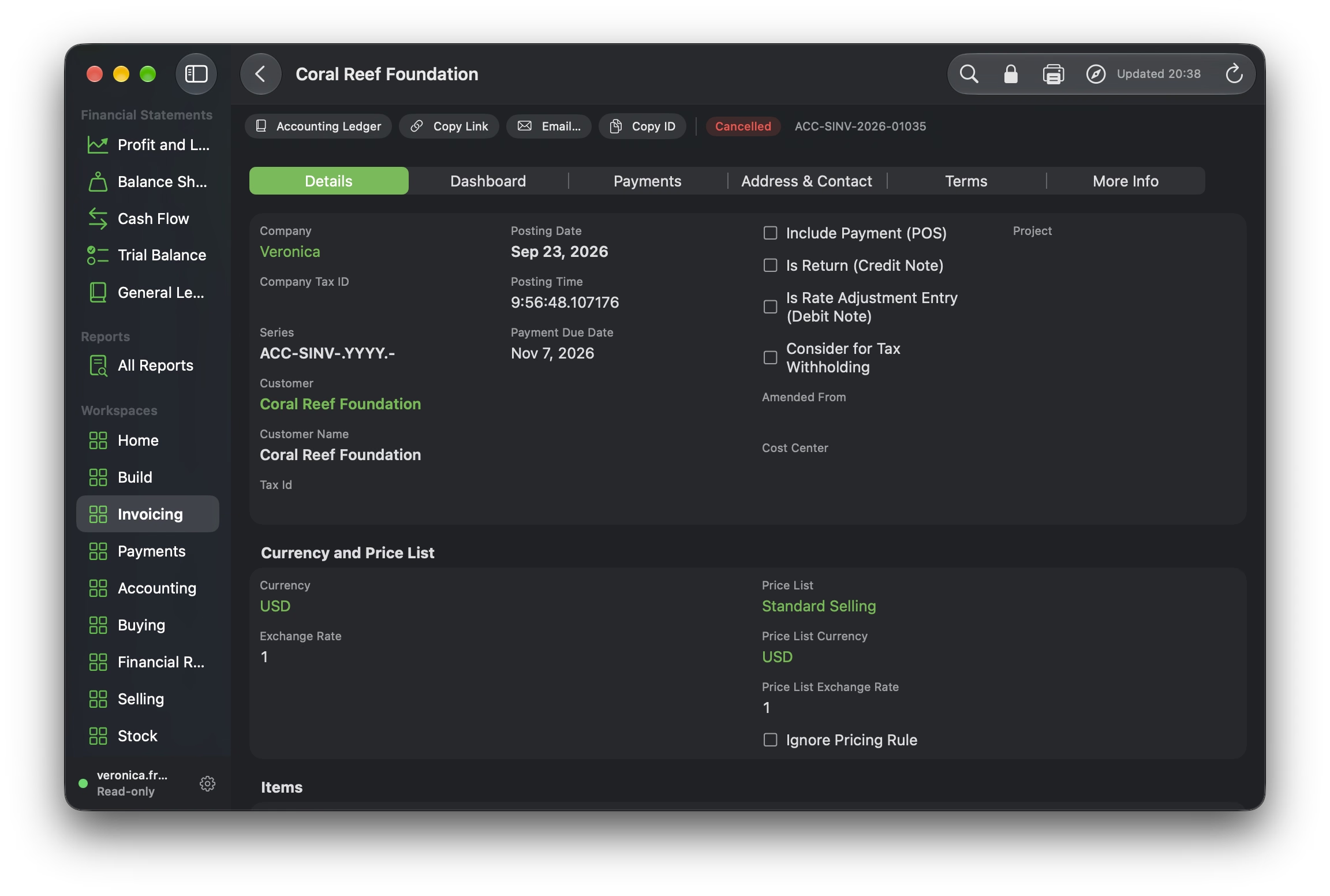
ERPNext's own web interface, Desk, is not built screen by screen. It is a generic renderer: each document type describes its own fields, layout, and list columns, and each report describes its own columns. Tula reads the same metadata and renders it the same way, so custom fields, custom document types, and reports added on the server appear in the app without an update.
Tula is in development and is not on the App Store yet. The list below is what works now, not what is planned.
Read-only until you unlock it
Tula opens read-only. The part of the app that reads can only send GET requests, and only to a fixed list of Frappe's read APIs; it has no way to build any other kind of request.
Writing goes through a separate client that exists only while the lock in the toolbar is open. The lock is off at launch, closes again whenever the connection settings change, and is not offered in demo mode. Even with it open, the only writes possible are an enumerated list of the Frappe methods Desk itself calls, described under Editing below. For defense in depth, connect with an API key belonging to an ERPNext user who has read and report permissions only; then the server refuses a write even with the lock open.
Financial statements
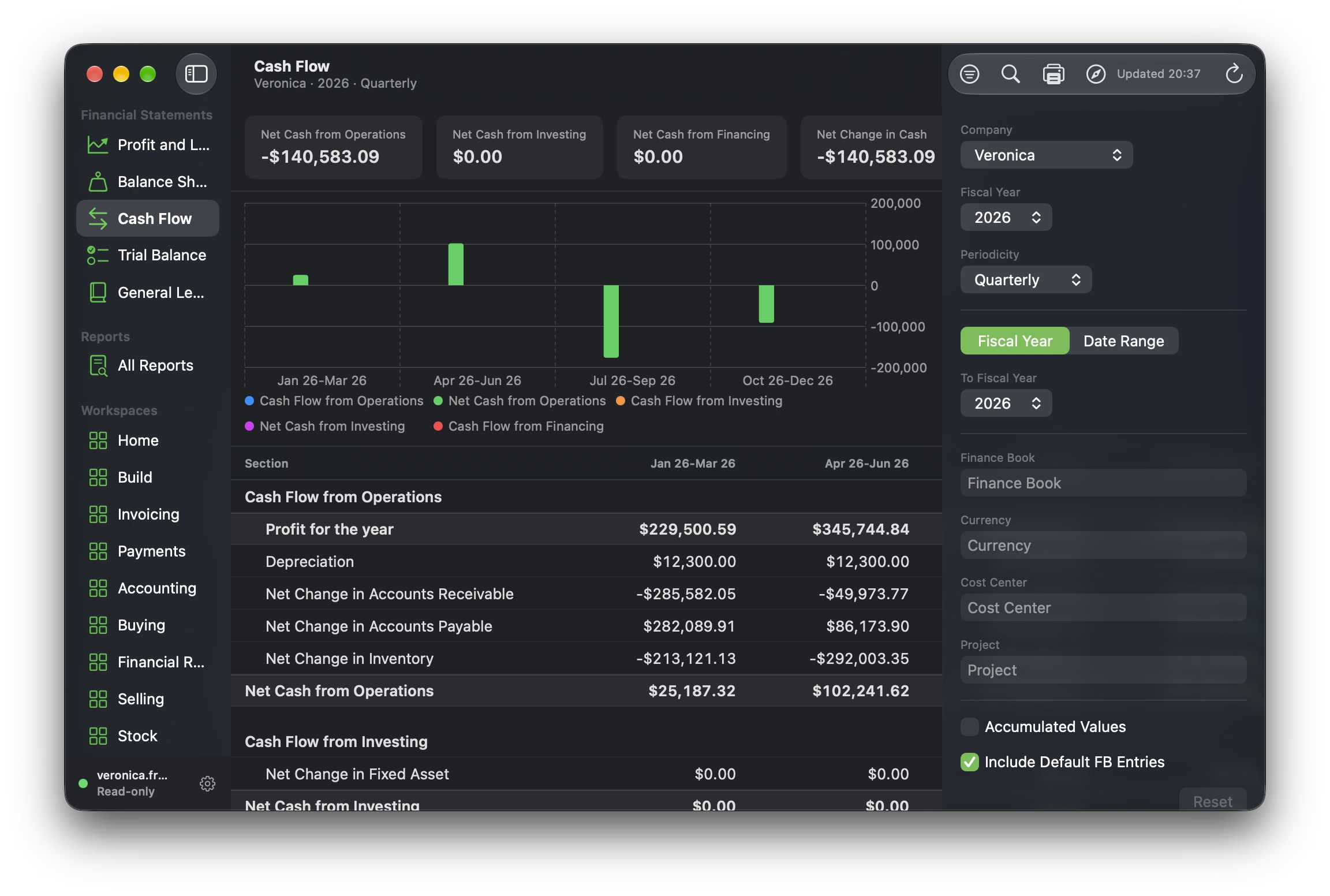
Profit and Loss, Balance Sheet, Cash Flow, Trial Balance, and the General Ledger sit at the top of the sidebar, and on ⌘1 through ⌘5 on the Mac.
- Desk's whole filter set for the statements, in an inspector beside the report: company, fiscal year or date range, periodicity, finance book, presentation currency, cost center, project, accumulated values, and default finance book entries. On the Mac it is open by default and remembers whether you closed it; on iPhone it is a half-height sheet. The current selection is the report's subtitle.
- Summary tiles and a chart above the grid, both from the report's own result; either can be hidden, per report
- Account rows indent, group rows are bold, and totals are drawn as totals, as in Desk
- Click an amount to see where it came from: the General Ledger opens for that account over that column's period, carrying the statement's cost center, project, finance book, and currency. The ledger's filters are filled in rather than pinned, so the period can be widened in place.
- Trial Balance rows open the ledger over the fiscal year, and receivable and payable accounts open the receivable and payable ageing reports, as Desk does
- Hover over a voucher on the Mac, or press and hold on iPad and iPhone, for a quick view: title, status, preview fields, and line items, without leaving the report
- Sort by any column header
- Export the grid as a paginated vector PDF
Every other report
ERPNext ships hundreds of reports, and all of them run through the same renderer as the statements.
- All Reports (⌘0) lists the server's reports by module
- Filters come from each report's own definition on the server and become native controls; link and text filters apply when you pick, press Return, or leave the field, not on every keystroke
- The chart a report returns is drawn with Swift Charts
- Desk implements some drill-downs in each report's JavaScript, which Tula cannot run, so Tula declares them itself for the standard reports: accounts receivable and payable summaries to their detail by party, Stock Balance to the Stock Ledger by item and warehouse, and Budget Variance actuals to the ledger for the column's months
- A report that puts its links on the rows server-side needs no declaration: those cells open the document, list, ledger, or report they name. Alignment, bold rows, and the report's message are shown as Desk shows them.
Lists, documents, and trees
- Lists use the columns saved in Desk's List View Settings for the document type, and its saved sort
- Quick filters are the fields Desk shows under Filter By. The filter editor offers Desk's operators for each field type, including between and named date ranges, with type-ahead for links; small link targets are kept on the device, so their type-ahead is instant.
- Filters saved in Desk appear as presets
- Search, a count of matching documents, and the next page loaded as you scroll to it
- A document is laid out from its own definition (tabs, sections, and columns), and fields show and hide on the same conditions as in Desk, evaluated the way Desk evaluates them
- Every link is followable: a report row opens the ledger entry, which opens the voucher, which opens the customer
- Child tables show the columns Desk's grid shows, with a sheet for each row's details
- The Dashboard tab shows connected documents with their totals and open counts, and party figures such as annual billing and total unpaid
- Attachments open in Quick Look, and comments and activity are listed beneath the document
- Print formats are rendered to PDF by the server and open in Preview on the Mac, or Quick Look on iPad and iPhone
- Copy Link, Copy ID, Email (a mail draft carrying the Desk link), and Open in Desk, which carries the current list or report filters across
- Tree views for the chart of accounts, cost centers, item groups, and warehouses, with Desk's tree filters
Workspaces and search
The sidebar lists the server's own workspaces, so a module installed on the server appears there with no change to the app. A workspace shows its shortcuts, links, number cards, and dashboard charts.
⌘K or ⌘F opens the search bar, which mirrors Desk's: document types to go to, reports, and full-text document results, driven with ↑, ↓, and Return. ⌘[ and ⌘] go back and forward, and the Go menu keeps a history.
Editing
With the lock open, Tula does what Desk does, through the same server methods:
- Collaboration: comments, including editing or deleting your own, assignments, tags, shares, likes, following, attachments, and reminders
- Lifecycle: submit, cancel, the transitions of the document's workflow, rename, duplicate, and delete. Submit, cancel, and delete each ask for confirmation first.
- Fields: an edit session on draft documents, and on the fields a submitted document allows to change. Each field type has its own editor, and read-only, mandatory, set-only-once, and conditional rules apply as in Desk. Saving sends the document with the version it was loaded at, so if someone else saved in between, Tula says so and offers a reload instead of overwriting their change; the edit itself is lost in that case.
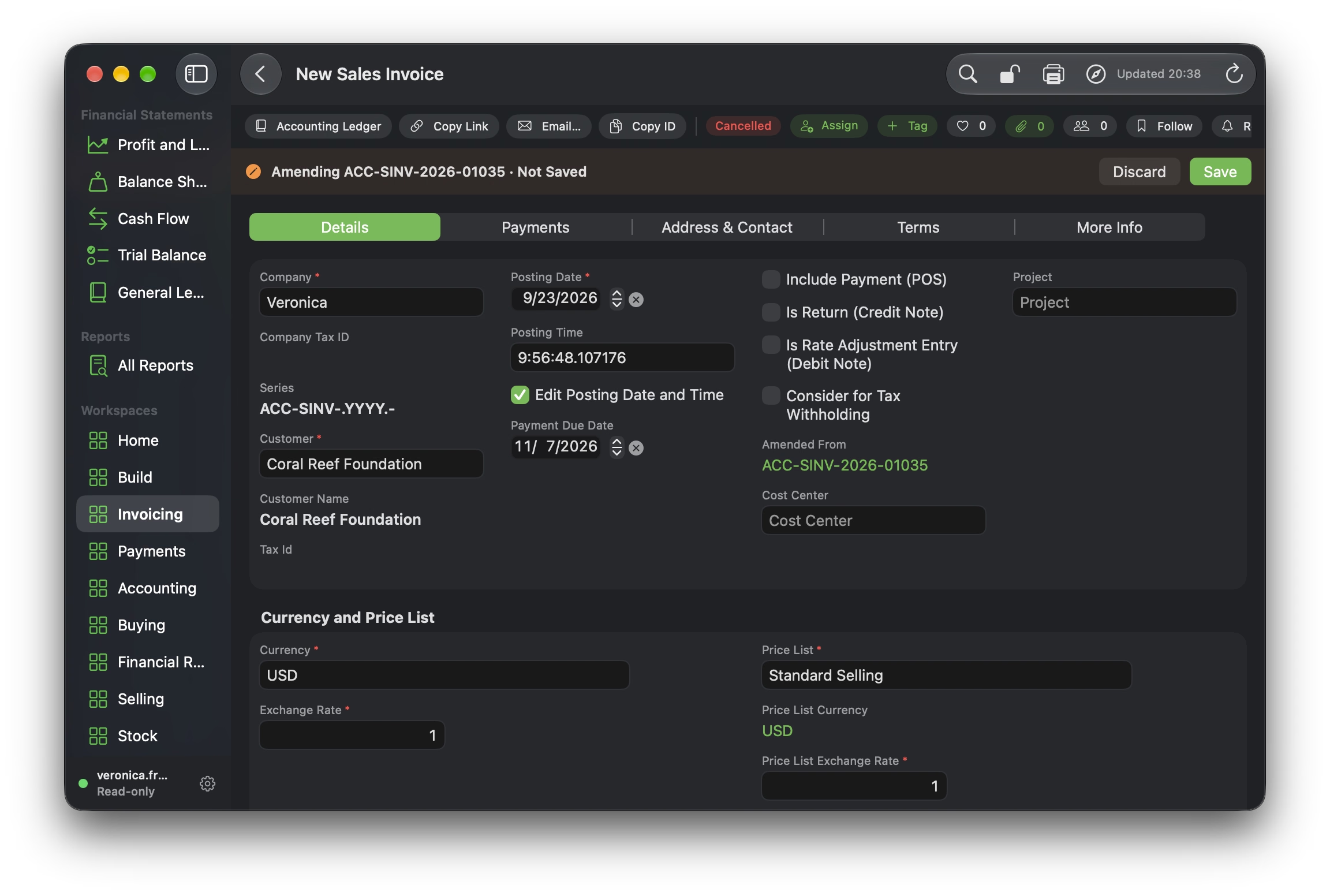
- Creation: the + on a list opens Quick Entry for document types that have it, with the full form a click away, and a cancelled document can be amended, editing the copy in place as Desk does
- Lists: a sort change is saved to your Desk settings, chosen columns can be saved to the server's List View Settings, filter presets can be saved and deleted, and a selection can be assigned to you, tagged, submitted, cancelled, or deleted at once. Submitting, cancelling, and deleting a selection state the count in their confirmation.
Taxes, pricing rules, and totals are the server's to compute. Tula does only the arithmetic that is safe to do locally, such as an amount from quantity and rate, and shows the server's figures once the document saves. Nothing is written offline.
Staying current
- ⌘R refreshes any screen, as does pulling down on a list or document on iPad and iPhone. What is on screen stays there until the new result arrives.
- While a financial statement is open, Tula checks every 45 seconds whether any ledger entry has changed and reruns the statement only if one has; lists and documents watch their own document type the same way. Idle, that costs one small request per interval.
- The last result of each report is kept on disk, so a report opens at once and reruns in the background, and reports already viewed can be read offline
Demo mode
Tula starts in demo mode, on bundled sample books and with no network access, so it can be explored before it is pointed at a server. To connect, turn demo mode off in Settings and enter the server's address with an API key and secret, which ERPNext issues under User → Settings → API Access.
How it is built
- One Swift package holds the API clients, the metadata models, the layout parser, and the report engine; the app is SwiftUI throughout, and the same code runs on all three platforms
- Each of Frappe's forty or so field types maps to a native view and, where it can be edited, a native editor; a field type Tula does not know falls back to text rather than breaking the form
- No WebKit. HTML in fields is parsed by Tula itself, and a server-rendered table, such as a tax breakup, becomes a native grid. Desk's show-and-hide conditions are JavaScript expressions, so they are evaluated with JavaScriptCore: expressions only, never web content.
- Reports arrive in several shapes (columns as dictionaries or as Desk's older
Label:Type/Options:Widthstrings, rows as dictionaries or as arrays) and are normalized into one model before anything is drawn - Credentials are kept in the Keychain, and the app talks to no host but the server you configure
Requirements
macOS 14.4 or later, or iOS and iPadOS 17.4 or later. Tula needs an ERPNext server to connect to, over HTTPS (plain HTTP is allowed on the local network, for development servers), and an API key and secret for a user on it.
Support
Tula is free and open source under the Apache 2.0 licence. Please discuss and register issues on GitHub.